Bone Constraint
Added as an experimental feature in v1.14.0, stabilized in v1.19.0
Bone Constraint is a constraint feature that keeps the distance between two specified bones constant. It is XPBD-based, and in setups where multiple vertical bone chains line up like a skirt, it connects adjacent chains horizontally to reduce spreading, variation, and penetration between chains.
The Problem It Solves
In setups where multiple vertical bone chains line up like a skirt, each chain can sway independently, which can create gaps between adjacent chains or cause chains to cross each other.
Adding horizontal distance constraints between bones at the same level with Bone Constraint keeps the distance between columns and gives them a cloth-like cohesion. This makes it easier to reduce over-spreading, variation, and penetration between chains.

Constrains adjacent bone chains horizontally and maintains the distance between bones.

Setup
Configure this in the AnimNode's Limits|Bone Constraint category. Add FModifyBoneConstraint entries to the BoneConstraints array, and specify the two bones you want to constrain in Bone1 and Bone2.
For skirts, pair bones at the same level in adjacent vertical chains. For example, connect bones at the same height horizontally, such as skirt_01_01 with skirt_02_01, and skirt_01_02 with skirt_02_02. If you connect the last column back to the first column, the loop is closed and the distance can be maintained around the full circumference.
UPROPERTY(EditAnywhere, Category = "Limits|Bone Constraint")
TArray<FModifyBoneConstraint> BoneConstraints;
| Property | Value |
|---|---|
| Struct | FModifyBoneConstraint |
| Bone 1 | Bone1 |
| Bone 2 | Bone2 |
| Category | Limits|Bone Constraint |
Stiffness (Compliance Type)
BoneConstraintGlobalComplianceType is the stiffness type used globally by Bone Constraint. Harder values maintain the distance between the two bones more strongly, while softer values allow more movement. The default is Leather.
| Property | Value |
|---|---|
| Type | EXPBDComplianceType |
| Default | Leather |
| Category | Limits|Bone Constraint |
| Value | Description |
|---|---|
| Concrete | Concrete (hardest) |
| Wood | Wood |
| Leather | Leather (default) |
| Tendon | Tendon |
| Rubber | Rubber |
| Muscle | Muscle |
| Fat | Fat (softest) |

For individual FModifyBoneConstraint entries, enabling bOverrideCompliance lets you override the stiffness type per constraint with ComplianceType. For XPBD stiffness, see also About XPBD Stiffness.
Iteration Count
Bone Constraint is iterated before and after collision processing. BoneConstraintIterationCountBeforeCollision is the number of passes before collision, and BoneConstraintIterationCountAfterCollision is the number of passes after collision. Both default to 1.
| Property | Value |
|---|---|
| BoneConstraintIterationCountBeforeCollision | Default: 1 |
| BoneConstraintIterationCountAfterCollision | Default: 1 |
| Category | Limits|Bone Constraint |

Increasing the iteration count improves convergence and makes it easier to maintain the distance between bones. However, processing cost also increases with the count, so adjust it only as much as needed.
Terminal Dummy Bones
bAutoAddChildDummyBoneConstraint is a flag that automatically adds terminal dummy bones to the processing targets when terminal bones are targeted by Bone Constraint. The default is true.
| Property | Value |
|---|---|
| Type | bool |
| Default | true |
| Category | Limits|Bone Constraint |
If you want to keep horizontal connections all the way to the tips, leaving this enabled is usually fine.
Batch Setup with Data Assets
Using BoneConstraintsDataAsset lets you manage Bone Constraint settings as a dedicated Data Asset. This is useful when you want to share the same constraint settings across multiple AnimNodes or Animation Blueprints.
In the Data Asset, you can use ApplyRegex to generate constraint pairs in a batch from regular expressions. For example, specifying skirt_01_.* and skirt_02_.* can connect the same levels of two adjacent columns all at once.
// FRegexPatternBoneSet
RegexPatternBone1 = "skirt_01_.*";
RegexPatternBone2 = "skirt_02_.*";
For details, see Data Assets.
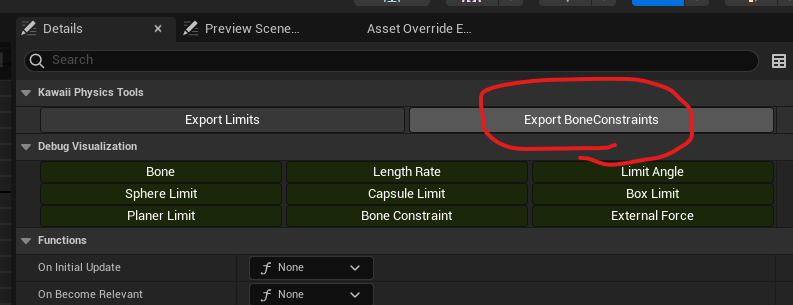
Exporting BoneConstraint settings from the AnimNode
Integration with Bone Constraint Subdivision
Bone Constraint Subdivision inserts collision points along Bone Constraint lines, preventing gaps and penetration between adjacent chains. By connecting columns with Bone Constraint and subdividing along those constraint lines, collision can be handled at a finer resolution in surface-like setups such as skirts.
For details, see Bone Subdivision.