Data Assets
This guide explains how to manage parameters as reusable Data Assets.
Overview
Since v1.21.0, KawaiiPhysicsLimitsDataAsset stores collision settings for spheres, capsules, boxes, and planes, along with the Skeleton used for editing. It does not include general node settings such as Damping, Stiffness, or Gravity.
Use a dedicated BoneConstraintsDataAsset for BoneConstraint settings. A preset for reusing node settings is planned for v1.22 and has not been officially released yet. For presets of external force settings, including wind, see External Force Presets.
Creating a Data Asset
- Right-click in Content Browser
- Select Miscellaneous > Data Asset
- Select KawaiiPhysicsLimitsDataAsset
- Name and save
Setting Parameters
The LimitsDataAsset can store the following collision limits:
- Spherical Limits
- Capsule Limits
- Box Limits
- Planar Limits
Usage
- Set the Limits Data Asset property in the KawaiiPhysics node
- Parameters from the Data Asset are automatically loaded
UPROPERTY()
UKawaiiPhysicsLimitsDataAsset* LimitsDataAsset;
BoneConstraint Settings
See Bone Constraint for a guide to the feature itself.
BoneConstraint settings are stored in a dedicated BoneConstraintsDataAsset, not in the LimitsDataAsset. BoneConstraint was introduced in v1.14.0 and became an official feature in v1.19.0.
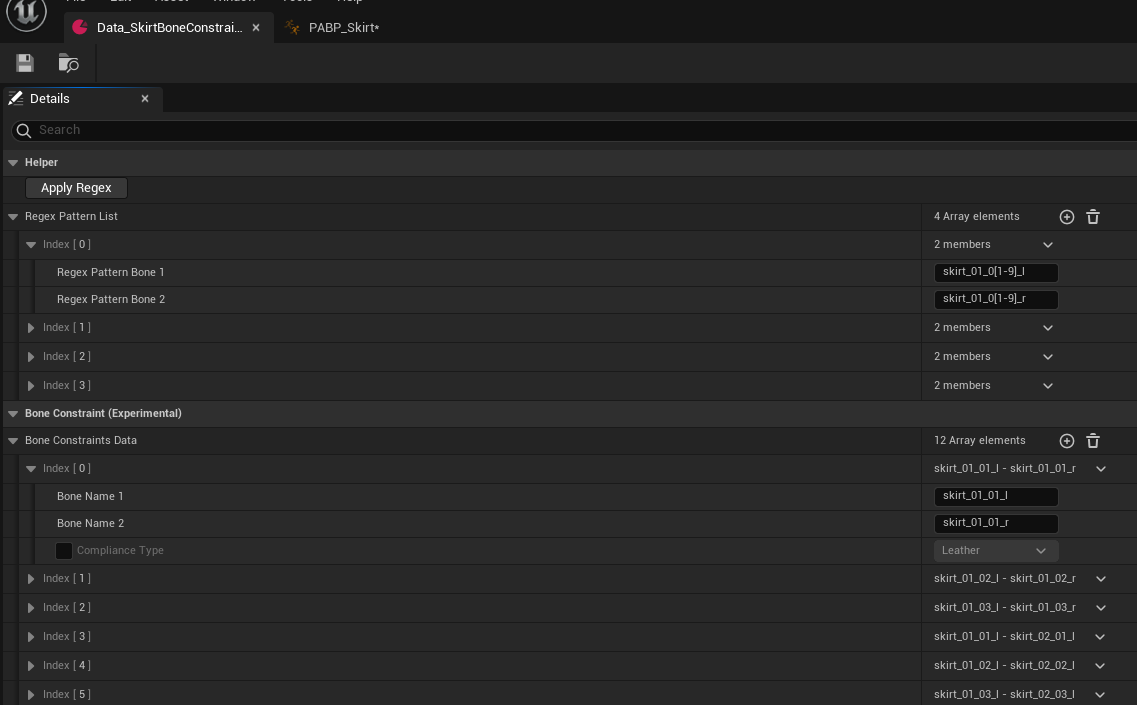
Generating bone constraints from regular expressions in BoneConstraintsDataAsset

Bone sets for constraints can be specified using regular expressions:
// Example: Constraints between skirt_01_* and skirt_02_*
Bone1: skirt_01_.*
Bone2: skirt_02_.*
BoneConstraintsDataAsset
Stabilized in v1.19.0
A Data Asset dedicated to BoneConstraint settings. Recommended when you want to share settings across multiple AnimNodes or Animation Blueprints.
UPROPERTY(EditAnywhere, BlueprintReadWrite, Category = "Limits|Bone Constraint")
TObjectPtr<UKawaiiPhysicsBoneConstraintsDataAsset> BoneConstraintsDataAsset;
BoneConstraintsDataAsset Parameters
| Parameter | Type | Description |
|---|---|---|
| BoneConstraintsData | TArray<FModifyBoneConstraintData> | Array of bone constraint data |
| RegexPatternList | TArray<FRegexPatternBoneSet> | Regular expression pattern list (editor only) |
| PreviewSkeleton | TSoftObjectPtr<USkeleton> | Preview skeleton for editor |
FModifyBoneConstraintData Struct
| Parameter | Type | Description |
|---|---|---|
| BoneReference1 | FBoneReference | Reference to first bone |
| BoneReference2 | FBoneReference | Reference to second bone |
| bOverrideCompliance | bool | Whether to override Compliance Type |
| ComplianceType | EXPBDComplianceType | Compliance Type when overriding (Default: Leather) |
| bExcludeFromSubdivision | bool | Exclude this constraint from BoneConstraint Subdivision (opt-out for structural/diagonal constraints; default: false, added in v1.21.0) |
Batch Setup with Regular Expressions
Use the ApplyRegex button to automatically generate bone constraints from regex patterns.
// FRegexPatternBoneSet
RegexPatternBone1 = "skirt_01_.*";  // First bone pattern
RegexPatternBone2 = "skirt_02_.*";  // Second bone pattern
Benefits
Reusability
Collision settings can be shared among characters with the same body type.
Batch Changes
Modifying the Data Asset reflects changes to all referencing characters.
Version Control
Can be managed as assets, making change history easier to track.
Best Practices
- Create per body type: "Male_Standard", "Female_Standard", etc.
- Separate by part: "Hair_Collision", "Tail_Collision", etc.
- Naming convention:
DA_KP_[BodyType]_[Part]
Content/
└── KawaiiPhysics/
    └── DataAssets/
        ├── DA_KP_Female_Hair
        ├── DA_KP_Female_Skirt
        └── DA_KP_Male_Cape