Collision Setup
Set up collisions to prevent bones from penetrating through the body.
This page is a setup guide. For all properties and default values of each collision shape, see Collision Parameters.

Examples of collision placement and the purpose of each shape (diagram labels are in Japanese).
Collision Types
Sphere
Suitable for spherical parts like head and shoulders.

Capsule
Suitable for cylindrical parts like arms and legs.
Tapered Capsule Collision (planned for v1.22)
This feature has not been officially released yet. It is planned for KawaiiPhysics v1.22. Specifications may change during development.
An equal-radius capsule fitted to one end of a tapered limb can leave too much space at the other end. Tapered Capsule lets you set the endpoint radii independently, representing the width change with one shape.
- Add an entry under
Collision > Tapered Capsule Collision. - Select its
Driving Bone. - Adjust one endpoint width with
Radius0. - Adjust the other endpoint width with
Radius1. - Adjust the center-to-center distance with
Length.
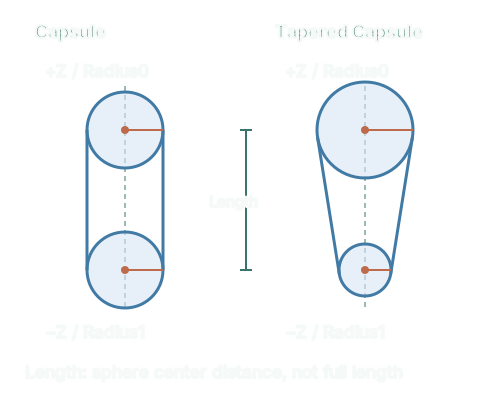
Strong tapers should not assume identical contacts to Chaos geometry. A length that makes one endpoint sphere contain the other collapses the shape to the larger sphere. See the shape reference for the exact rule.
Plane
Used for flat surface restrictions like ground and walls.
Box
Added in v1.17.0
Box-shaped collision. Suitable for rectangular shapes like body and buildings.
UPROPERTY()
TArray<FBoxLimit> BoxLimits;
FBoxLimit Properties:
| Property | Type | Default | Description |
|---|---|---|---|
| DrivingBone | FBoneReference | - | Bone that collision follows |
| OffsetLocation | FVector | (0, 0, 0) | Location offset from the Driving Bone |
| OffsetRotation | FRotator | (0, 0, 0) | Rotation offset from the Driving Bone (range -360 to 360) |
| Extent | FVector | (5, 5, 5) | Box half-extents (size in each axis direction) |
DrivingBone / OffsetLocation / OffsetRotation are common to all collision shapes (FCollisionLimitBase). FSphericalLimit adds Radius (default 5) and LimitType (Inner/Outer); FCapsuleLimit adds Radius (default 5) and Length (default 10).
Collision Generation from PhysicsAsset
Added in v1.17.0
You can auto-generate collision shapes from existing PhysicsAssets. Collision bodies defined in PhysicsAsset are converted to KawaiiPhysics collisions.
Usage
- Select KawaiiPhysics node
- Set existing PhysicsAsset to Physics Asset property
- Collision shapes are automatically generated
Benefits
- Reuse existing PhysicsAssets
- Reduces manual collision setup work
- Consistent collision settings
Adding Collision
- Select the KawaiiPhysics node
- Add elements to Spherical Limits / Capsule Limits / Box Limits / Planar Limits array
- Set Driving Bone (bone that collision follows)
- Adjust offset and size
Driving Bone
Collision follows and moves with the Driving Bone.
upperarm_r (Driving Bone)
    ↓ Follows
[Capsule Collision] → Hair stops here
Inside vs Outside
Inside (Inner Limit)
Limits bones to inside the sphere.
- Use case: Following head shape
Outside (Outer Limit)
Limits bones to outside the sphere.
- Use case: Preventing penetration into shoulders
Combining Multiple Shapes
In actual characters, multiple collision shapes are used in combination.

Practical collision placement example for the upper body and skirt
Performance Considerations
More collisions increase processing load.
- Use the minimum necessary collisions
- Approximate complex shapes with multiple simple shapes
For more details, see Performance.
Related UE documentation
-
Physics Asset Editor — Understand PhysicsAssets and the editor used to author their shapes. (UE 5.8)
-
Mirroring Animation — Create a Mirror Data Table and inspect paired bones and Mirror Axis; KawaiiPhysics uses the table for collision generation. (UE 5.8)