UKawaiiPhysicsPresetDataAsset
This feature has not been officially released yet. It is planned for KawaiiPhysics v1.22. Specifications may change during development.
Overview
You have tuned Damping and Stiffness on one piece of hair and want to reuse them elsewhere. Copying values individually can leave changes unsynchronized or overwrite intentional adjustments for a particular part.
A KawaiiPhysics Preset Data Asset stores node settings for application to other nodes. Preset Diff compares saved and current values so you can select only what should match. Artists and TAs can use a common starting point while tuning each part separately.
Saved and Per-Node Settings
Normal Details application preserves the target's Root Bone, Exclude Bones, and Additional Root Bones while transferring motion settings. Left and right hair can share Damping while keeping their own bone assignments.
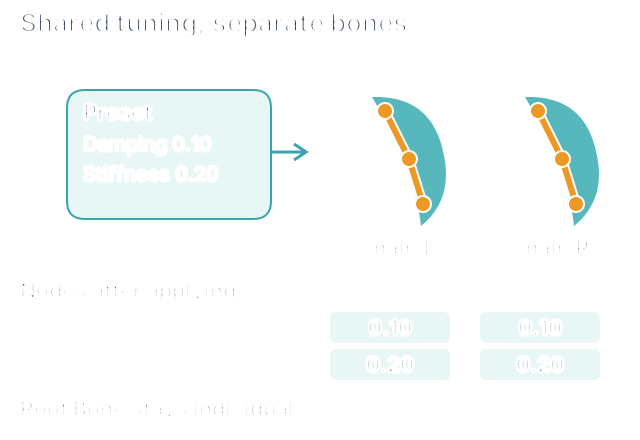
Bone Assignments and Tags
Details Apply Preset preserves target Root Bone / Exclude Bones / Additional Root Bones. An existing valid KawaiiPhysicsTag is preserved; an untagged node may inherit a valid preset tag.
FKawaiiPhysicsPresetApplyOptions provides explicit bApplyBoneAssignment and bApplyTag overwrites, both defaulting to false. Preset Diff compares with default options. Do not equate normal Details operations with explicit API options. See UKawaiiPhysicsEditorLibrary for scripted application and property editing.
Export Preset / Apply Preset
- Select the source Kawaii Physics node.
- Save settings with
Export Presetin Details. - Select the target node.
- Choose the saved asset with
Apply Preset. - Compile the Animation Blueprint.
A Skeleton mismatch produces a warning without blocking application.
Check Preset Diff
A different value is not necessarily a mistake. A stiffer setting for one part may be intentional; an old value after a preset update may have been missed. Preset Diff shows differences as evidence for deciding what should match. It does not automatically classify intentional differences or missed updates.
Compare Node Value and Preset Value, then select only what is needed. If node Damping is 0.35 and preset Damping is 0.10, applying Damping alone preserves unrelated adjustments.
- Select the Kawaii Physics node to compare.
- Open
Check Preset Diffin Details. - Choose the comparison preset in the selector.
- Check only the Damping row.
- Press
Apply Selected.
Node Damping becomes 0.10; unchecked properties remain unchanged.
Check Preset Diff
Check Preset Diff searches presets targeting the node tag and reports No preset targets this node's tag. when none match. The preset selector changes the comparison target.
| Example Property | Node Value | Preset Value | Comparison |
|---|---|---|---|
| Damping | 0.35 | 0.10 | Different |
| Stiffness | 0.05 | 0.20 | Different |
| Radius | 3.0 | 3.0 | Matching |
These are illustrative values. The comparison does not automatically identify intentional tuning or missed updates.
| Action | Direction and Scope |
|---|---|
| Apply Selected | Checked properties only, preset→node |
| Apply Preset to Node | Whole selected preset, preset→node |
| Update Preset from Node | node→preset: selected properties if any are checked, otherwise all differences |
Update Preset from Node confirms the overwrite count, changes the preset, and marks it dirty. Other nodes require reapplication and inspection. The two preset-to-node actions refresh and stop if relevant values changed after the displayed snapshot. Review refreshed values before retrying.
Search filters category / display name / internal property name. Columns are Category, Property, Node Value, and Preset Value; Property tooltips include internal names. Show All Properties includes matching properties. Copy exports a tab-separated diff; Refresh re-resolves the node and rebuilds comparisons.
Tag Searches and Dry Runs
Target Tags selects search, audit, and project-application targets. Empty means no targets; Target Tags Exact Match defaults to false. Find Target Nodes locates targets and Apply to Project (Dry Run) inspects differences. A dry run does not change assets, and zero targets do not prove correct configuration. See Kawaii Node Audit.
Related UE documentation
- Data Assets — Review data stored in assets and instances of existing Data Asset classes. (UE 5.8)